Your pass from a shop
Adding it, removing it, your details.
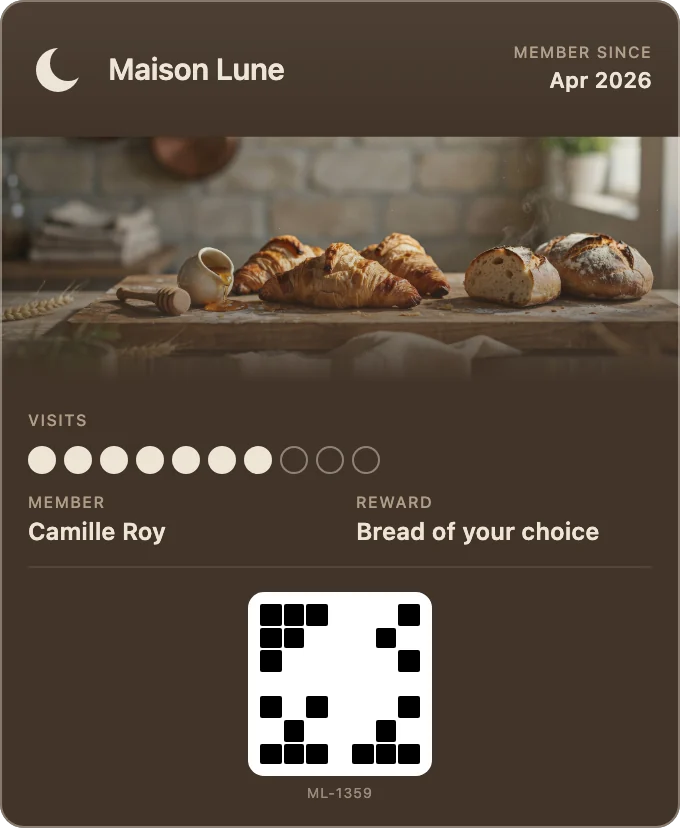
How do I add a shop’s pass to my phone?
Scan the shop’s QR code with your phone’s camera. The link opens in your browser and shows the pass, with Add to Apple Wallet or Add to Google Wallet. Give your name and email on one short form, tap once, and the pass is in the wallet your phone already has.
How do I remove it?
Remove it from Apple Wallet or Google Wallet as you would any pass. Once it is removed, it no longer updates on your phone.
Your record with the shop stays while the shop runs its program. To have it deleted, ask the shop.
My visits or my reward look wrong.
Your visits and rewards belong to the shop’s loyalty program, and the shop runs it. Ask the shop: they see your pass in their own dashboard.
Who has my details, and how do I delete them?
The shop you joined decides how its program uses your details. Fideliya stores them for the shop, on its instructions.
To correct or delete them, ask the shop: an owner or manager can delete you from their dashboard, which removes your name, email address and phone number and ends your pass. You can also write to contact@fideliyapass.com, and we will pass your request to the shop.
How do I stop the emails?
Use the unsubscribe link in any email from the shop’s program.