Customers and scanning
How they join, how a visit counts.
How do customers enroll in my loyalty program?
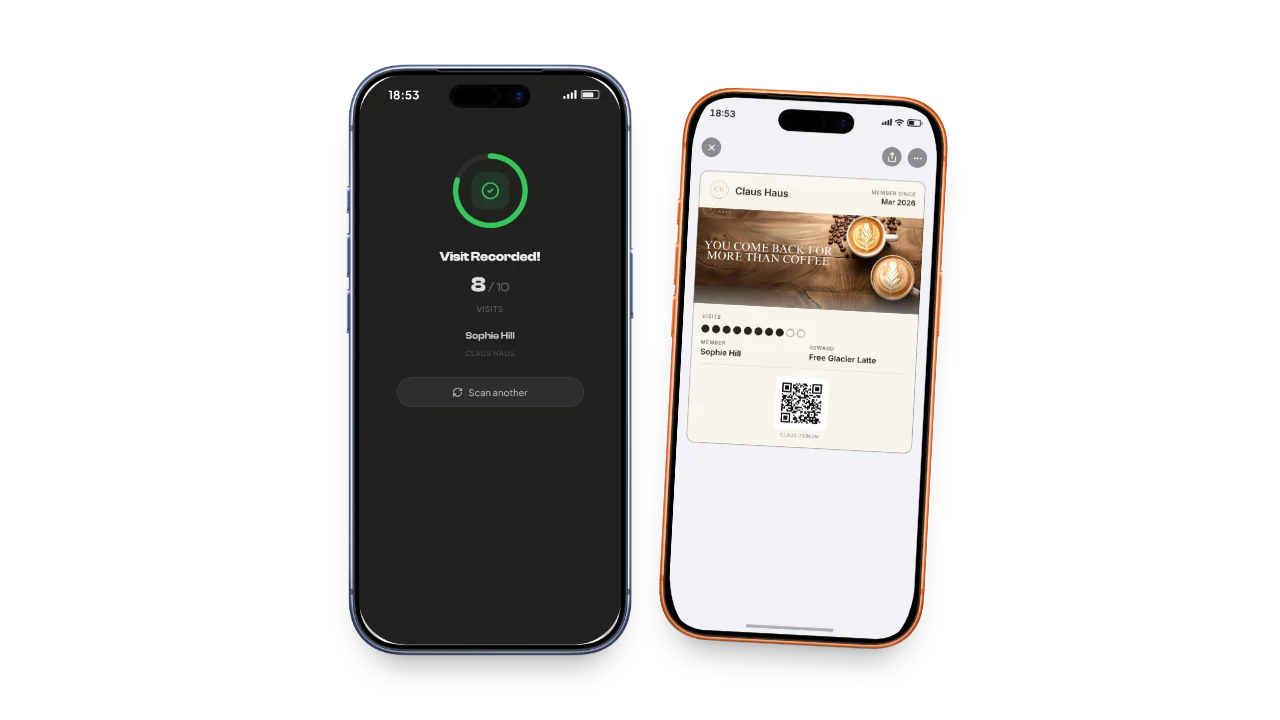
They scan the QR code you generated for your pass. The link opens in their phone's browser, shows your pass preview, and offers an Add to Apple Wallet or Add to Google Wallet button. They give a name and an email on one short form, tap once, and the pass is in their wallet. No app install, no account, no password.
How do I give a customer a visit or point?
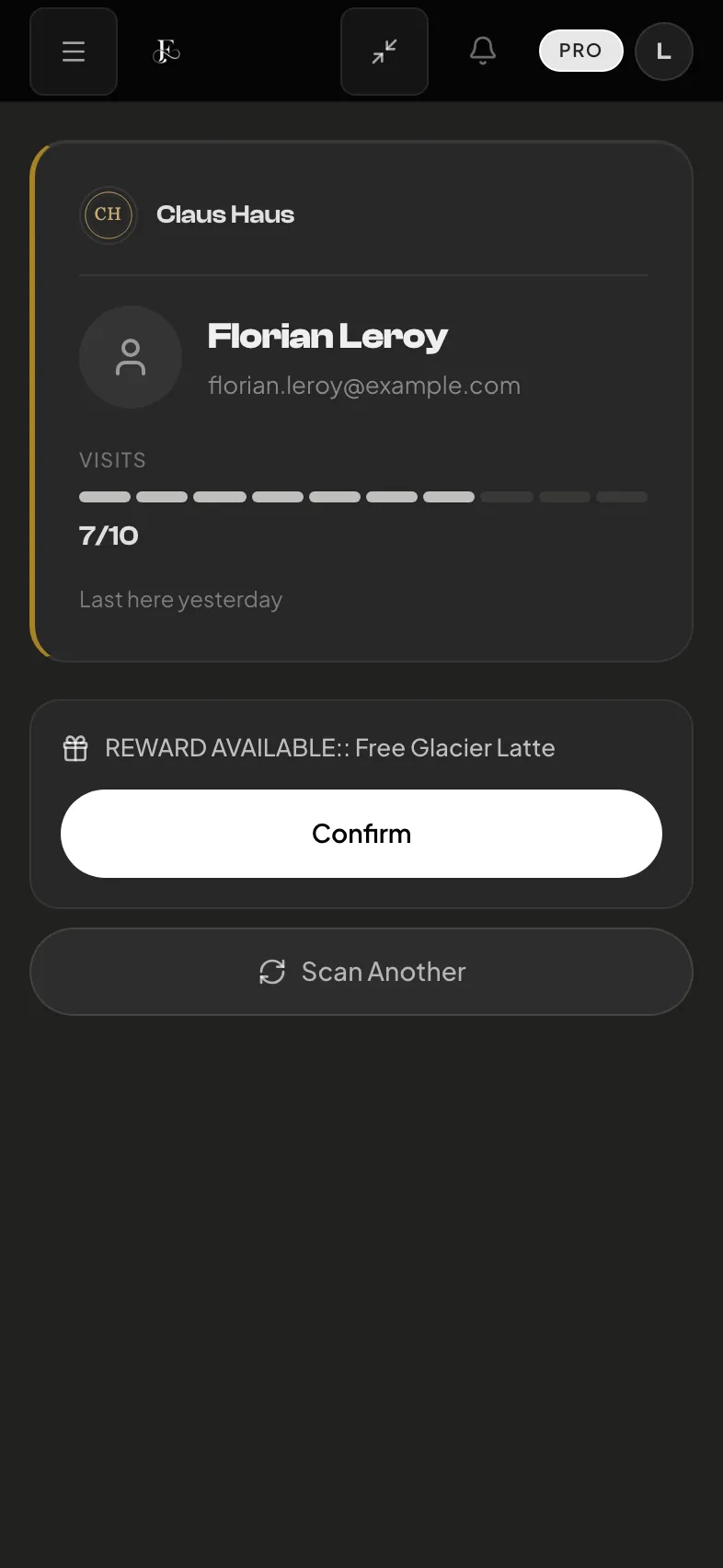
Open the Scanner from your dashboard, in the browser on a phone, a tablet or a computer. Point the camera at the QR code on the customer’s pass, or type the code printed under it and press Find. Their pass opens. On a phone it rises over the camera, and you swipe it down to go back. Choose Add a stamp. On a points pass, pick an amount or type one, then choose Add points. When a reward is ready, a button names it: choose it to give the reward. If a tap was a mistake, Undo stays on screen for a few seconds. The customer sees their updated pass in their wallet within a few seconds.
How do I see which customers are coming back and which aren't?
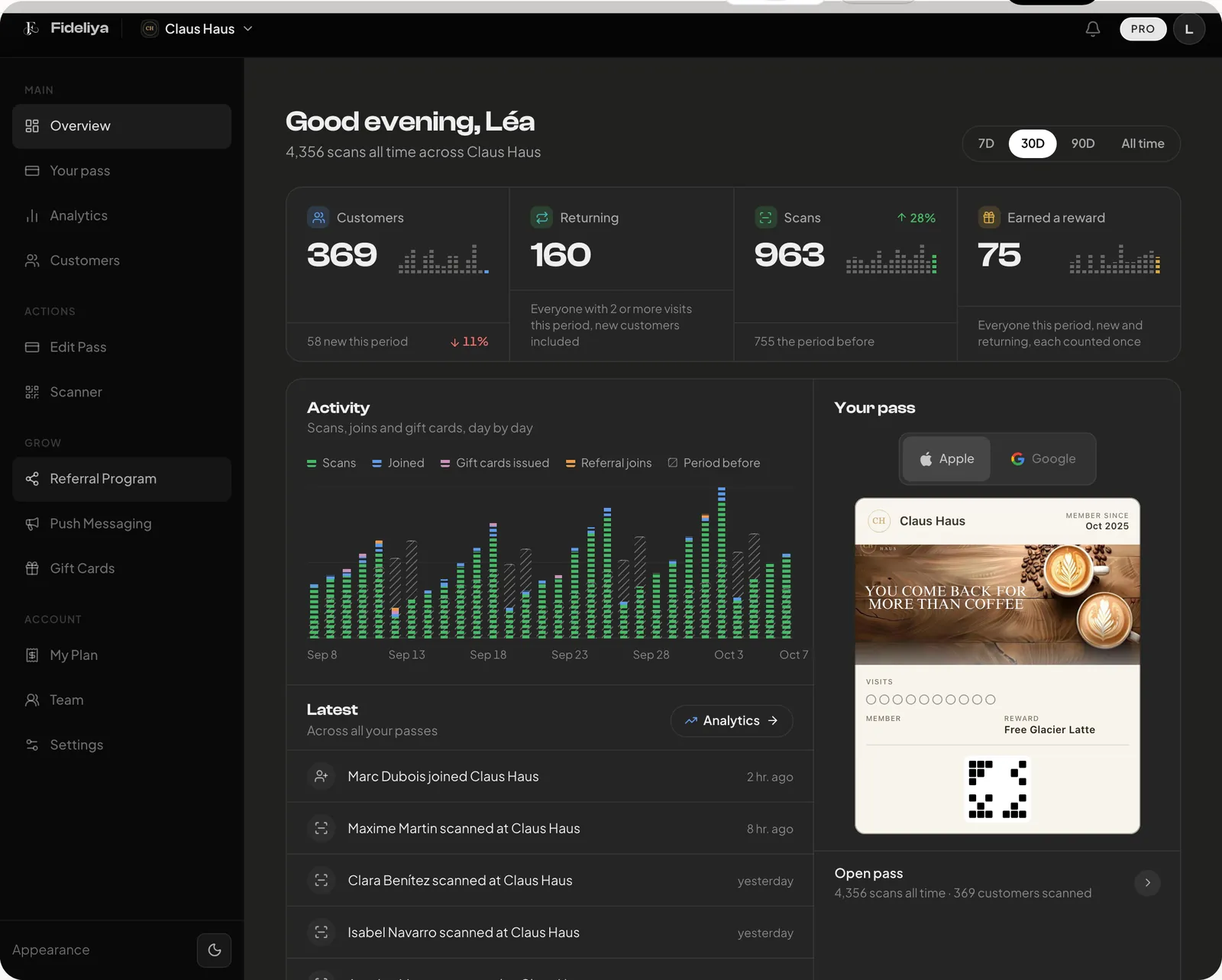
Open the Customers page in your dashboard and filter by Inactive: the customers not seen for 30 days, including people who joined and never came in. That is your win-back list. Open any customer to see where they stand and their next step. Open Analytics for deeper views: heatmaps of when customers visit, retention curves, and per-pass performance (Pro and up).
How does a loyalty pass bring customers back?
Every visit brings your customers closer to a reward they can see on their phone, so they choose your shop again. The pass reminds them too: after each visit, when you send a message, and near your door once you add your location.